Thursday, May 19, 2011

How to unlock ASUS Eee Pad Password?

Looking For a Password Recovery Program to Access Your Locked ASUS Netbook?

Apple's iPad 2 maybe the hottest thing on the hip-happenin' trendy tablet block, but Asus isn't that behind with its own version, currently dubbed the Eee Pad. Till April 2011, this computer has occupied a considerable market share. In this article, we will learn how to retrieve ASUS EPad Password.Retrieve asus eee pad tablet password

What is ASUS Eee PC?

Asus Eee PC is a subnotebook/netbook computer line from ASUSTeK Computer Incorporated, and a part of the Asus Eee product family. At the time of its introduction in late 2007, it was noted for its combination of a light weight, Linux operating system, solid-state drive and relatively low cost. Newer models have added the option of Windows operating system and traditional hard disk drives.

The first Eee PC was a milestone in the personal computer business, launching the netbook category of small, low cost laptops. According to Asus, the name Eee derives from "the three Es," an abbreviation of its advertising slogan for the device: "Easy to learn, Easy to work, Easy to play".

Some of ASUS's hot products

Eee Pad: Eee Slate EP121, Eee Pad Transformer TF101

Eee PC: Eee PC T91, Eee PC 1000HD

EeeBox PC: EeeBox PC B201, EeeBox PC EB1502

How to Regain Password on ASUS Eee Pad Tablet?

There are 2 passwords in an EPad, a bios password, an Operation System password. We will separately discuss the 2 cases.

Bios Password

Bios password is setting on the bios config, we can press Del button during loading the PC to enter bios config menu, then remove the bios password. Sometimes, you don't know the bios password, look this guide: "Top 3 methods to crack bios password!".

Tips: As we know, EPad uses touch screen. We could connect it with a USB keyboard to press Del button.

Operation System Password

We can install many OS on an ASUS tablet, for example: Linux, Unix, MAC OS, Windows. Here we discuss only windows.

1. Download Windows Password Recovery Tool (free trial).

2. Install and run it.

3. Create a password reset disk. A CD/DVD disk, or a USB Flash Disk, depend on the locked ASUS PC's support.

4. Boot the locked ASUS computer from the password reset disk.
Note: You may need to config bios setting to set it boot from the password reset disk. The 2 articles can help you.
a. Boot from the CD/DVD-ROM
b. Boot from the USB Flash Drive

5. On the password recovery Windows, select the user account that you forget its logon password, click "reset" button.

6. Confirm you action, then that user's password will be removed.

7. Disconnect the password reset disk, and reboot your ASUS computer. You will access Windows OS without password ( blank password ).

Finally

Get away from the troubles of forgetting ASUS PC Password, no matter it is bios/cmos password or Windows password.

Tips:

1. The Windows Password Recovery Tool supports all versions of Windows OS, including Windows 7, Vista, XP, 2000, 2003, 2008. It is popular way of regain your password, even you don't have a password reset disk.

2. Keep in mind that this tool can be only used on your own computer, never try to use it to crack PC password without permission. Otherwise, you will get into trouble by law.

3. You can create a ASUS Eee Pad Password Reset disk before you forget password.

Article source:  http://www.windows7password.net/

Tuesday, May 17, 2011

Enable Hidden Administrator in Windows 7

Ways to Enable / Disable the Built-In Windows 7 Admin Account

Many people familiar with prior versions of Windows are curious what happened to the Local Administrator account that was always created by default. Does this account still exist, and how can you access it? Recently I ran into an awkward situation where after disjoining a Windows 7 client machine from the domain, I was unable to log in to the computer. This was not because I had forgotten the local administrator password, but because the local administrator account was disabled (which is the default behavior in Windows 7). Like in Windows Vista, in Windows 7 the built-in Administrator's account is disabled by default. Furthermore, this account is not associated with any password. After doing some research, I found the following procedure that worked really well.

Enable Built-in Administrator Account

Basically there are 4 ways in order to activate the account:

A) Command Prompt

To enable the built-in Administrator's account by using the Command Prompt please follow these steps: 1. First you'll need to open a command prompt in administrator mode by right-clicking and choosing "Run as administrator" (or use the Ctrl+Shift+Enter shortcut from the search box) Run Command Prompt as Administrator 2. After that you only need to enter the simple command below to activate it. net user administrator /active:yes enable hidden administrator account 3. You should see a message that the command completed successfully. Log out, and you'll now see the Administrator account as a choice. built-in windows 7 administrator account You'll note that there's no password for this account, so if you want to leave it enabled you should change the password.

B) Local Security Policy

Another way of activating the administrator account in Windows 7 is via Local Security Policy. 1. Type secpol.msc in the search bar and hit enter. secpol 2. After the Local Security Policy pops up, navigate to Local Policies-> Security Options where you can see an entry that reads Accounts: Administrator account. Double click the entry to enable it. local security policy administrator account status

C) Using the Local Users and Groups Snap-in

To enable the built-in Administrator's account by using the Local Users and Groups snap-in please follow these steps: 1. Open Local Users and Groups. You can do so by typing lusrmgr.msc in the Start search box or in the Run command and pressing ENTER. Or, you could open Computer Management by right-clicking Computer in the Start menu and selecting Manage. 2. Expand System Tools > Local Users and Groups > Users. 3. Right-click the Administrator account and select "Set Password". 4. In the"Set Password for Administrator" click "Proceed". 5. In the"Set Password for Administrator" enter the Administrator's desired password twice, and click "Ok". 6. Next, enable the Administrator's account. Right-click the Administrator's account and select "Properties". 7. Un-chek the "Account is disabled" check-box. Click on the "Ok" button. Administrator's account is now enabled and configured with a password.

D) During the Installation Process

There is a 3rd method which advanced users can use. This method can be used during the installation process itself. 1. During the installation, after being prompted to configure the new user account, you will be able to set the new account's password. 2. At that phase, press SHIFT and F10 keys together. A Command Prompt window will appear. 3. In the Command Prompt window, type: net user Note how the Administrator account is there, yet the new user account has not been yet created. 4. To set the Administrator's account password: net user * 5. Then enter the required password and confirm it. 6. To enable the Administrator's accoun: net user administrator /active:yes 7. Close the Command Prompt window and continue with the installation process. If you log off you will now see the Administrator's account as a valid logon option.

Disable Built-in Administrator Account

Make sure you are logged on as your regular user account, and then open an administrator mode command prompt as above. Type the following command: net user administrator /active:no disable local admin account The administrator account will now be disabled, and shouldn't show up on the login screen anymore.

Hack into Windows 7 Administrator Account [Free Trial]

Article source: http://passwordreset.org

Friday, April 1, 2011

Unlock Windows 7 Logon Password

Anyone can forget a password. Okay you may think it will never happen to you, but think again, because it may just happen. Forgetting your user account password is no big deal providing you have taken the necessary precautions to create a Password Reset Disk.

Sadly, if you haven't created a Password Reset Disk for your Windows operating system then gaining access to your PC will become a nightmare. I'm not saying that it is impossible, because it isn't. However, this tutorial refers to resetting your user account password with the aid of your Windows 7 Password Reset Disk.

The first you will know about your password being wrong is when you type the password in at boot up and a message appears telling you that The User Name or Password is Incorrect. It is at this stage that you need your Password Reset Disk.

Once you have your Password Reset Disk (you should have created this either on a floppy disk or a USB flash drive. See: Create a Windows 7 Password Reset Disk) you should insert the disk (or USB stick) into the relevant drive and then proceed as follows:

  1. After you have typed in the wrong password a message will appear informing you that the User name or Password is incorrect, you should forgot Windows 7 Password. At this point, Click the OK button to take you back to the log on screen

    username-or password-is-incorrect

    User Name Or Password is incorrect error screen
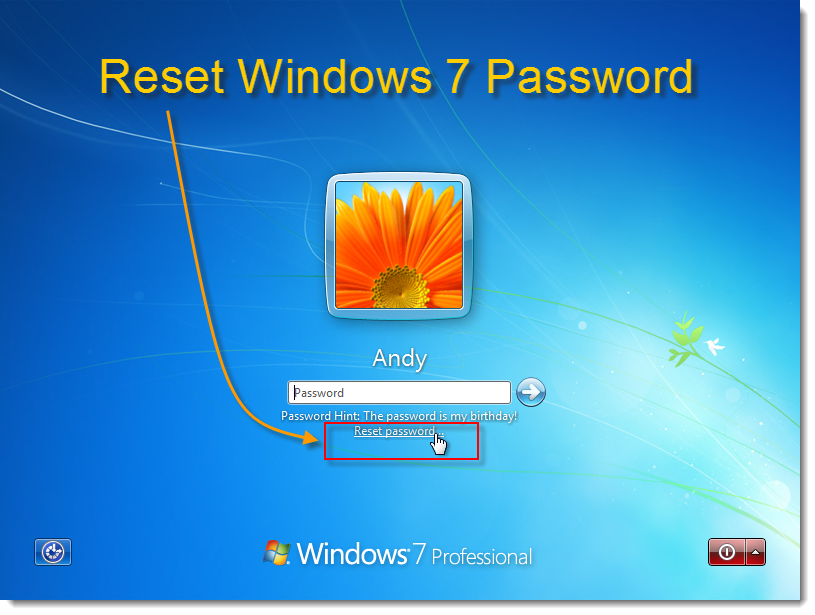
  2. After you have returned to the Windows Log On screen look just below the Password dialogue box and you will see a Reset Password option, Click on this to start the Reset process.

    reset windows 7 password

    Windows Log On screen showing the Reset Password option
  3. After clicking on the Reset Password option the Password Reset Wizard will open

    Password Reset Wizard

    Password Reset Wizard
  4. Click the Next button in the Password Reset Wizard screen
  5. The next screen (see fig 4) requires you to Insert the password reset disk
  6. If you haven't already done so, Insert the floppy disk or USB Thumb drive that holds the password reset file and then Select the drive from the password key disk is in the following drive dialogue box.

    Now press the Next button

    select windows 7 password key disk

    Insert the Password Reset Disk and then choose the drive from the drop down list
  7. You are now presented with the Reset the User Account Password screen

    reset windows 7 user account password

    The User Account Password Screen
  8. Type in the new password you wish to use and then type it in again to confirm your selection. Next type in a password hint and then click the Next button.
  9. The next screen to appear will be the Completing the password wizard screen. This should tell you that you have successfully reset your password.

    Completing the password wizard

    You have successfully reset your password
  10. Finally click the Finish button.
  11. You should now be taken back to the Log on screen where you can type in your new password and gain access to your system.
Tips:

Not a Windows 7 user? Still Using XP or Vista? Don't know how to reset password on other Windows Versions? See these articles below.

How to Reset Windows XP Password?

How to Reset Vista Password?

Saturday, March 12, 2011

Unlock Windows XP Password

So you lost your Windows XP user password? You can try your best to remember XP account password, such as:

  • * your name?
  • * a loved one's birthday?
  • * something from your childhood?
  • * a pet's name?
  • * your home or office address?
  • * the name of a friend or family member?
  • * a frequently dialed telephone number?
  • * a favorite food?
  • * a combination of any of the above?

Forgot Windows XP Password

Still Can't Find Your Windows XP Password?

If you've given it your best shot but that all-important Windows XP password is still hiding somewhere in your mind, then it's time to try something a bit more technical.

Don't worry - There is a easy way to recover the password.

Windows password recovery tool is a software program designed to recover or reset/delete your Windows XP password. It can sometimes be difficult to use but if there's no hope of remembering the password and you can follow some simple directions, Windows password recovery tool is life saver.

Notes: You need a Windows XP Password Reset disk. If you don¡¯t have created it before, you should use the Windows Password Recovery Tool to burn a reset CD/DVD or USB flash drive.

Step 1. Download the Windows Password Recovery Tool

Go to the official site of Windows Password Recovery Tool, and download it for free. Install it with default options.

Step 2. Create a Windows XP Password Reset disk

Run this soft, insert a blank cd/dvd or usb flash drive. Follow the step-by-step guide to burn a Windows XP Password Reset disk. You can burn it to a cd/dvd or USB, it depends on your personal condition. After burning successfully, you get a password reset disk. Now insert this password reset disk into the locked computer which you lost Windows XP Password.

Create a Windows 7 Password reset disk

Step 3. Set the bios config to boot from cd/dvd or usb
  • 1. Start your locked Windows XP Computer, press Del or F2 button while the computer is initalizing. The initial startup screen may be similar as this image. If you do that, you may see the bios config screen.
  • 2. Go to the boot menu and change bios setting to make it boot from cd/dvd or usb firstly.
    boot computer from cd first
  • 3. Press F10 to save your changes, then restart this computer.save bios change
  • 4 . After restart, the computer will automatically load Windows password Recovery Tool and you can start to reset Windows XP Password.
    loading password reset disk
Step 4. Recover Windows XP Password with the password reset disk.
  • 1. Choose the Windows XP Installation if you have more than one OS in this computer.
  • 2. All Windows XP users will be listed. Select the user name which you forgot its password, click reset button.
    recover forgotten windows xp password
  • 3. A dialog box will be pop-up, click Yes to confirm reset, then this Windows XP user password will be reset to blank.
    confirm reset xp administrator password
    reset windows xp password successful
    after resetting xp password
  • 4. Eject the password reset disk, and restart you computer, login Windows XP with a blank password.
    loading windows xp

login windows XP without password

Windows XP Password Recovery Tool [Download]

Saturday, December 18, 2010

How to Unlock Windows 7 Password?

Question: How do I bypass a Windows 7 account password if the only account I can access is guest? Can I bypass Windows 7 password with the guest account? I forgot my Windows 7 administrator password, how can I regain access to my computer without the password? I have no Windows password reset disk.
Recently I met many similar questions. Are you troubled with the same problem, also forgot Windows 7 password? Well, before answering the question, you should understand what a guest account is?

What is a guest account in your Windows 7?

The guest account in your Windows 7 only allows people to use your computer without having access to your personal files. With the guest account, you can't install any software or hardware, change settings, or create a password. Because the guest account allows a user to log on to a network, browse the Internet, and shut down the computer, you should disable the guest account when it isn't being used.
Solution: After learning the definition of a guest account, you can understand it is not possible for you to bypass Windows 7 user password through the guest account. But you can bypass your Windows 7 password, with Windows Password Recovery Tool 3.0, a safe and efficient tool for you to bypass Windows 7 password. It allows you to bypass your lost Windows 7 password in less than 5 minutes.

What is Windows Password Recovery Tool 3.0?

Windows Password Recovery Tool 3.0 is professional Windows password reset software with 3 editions: Windows Password Recovery Tool 3.0 Standard, Windows Password Recovery Tool 3.0 Professional and Windows Password Recovery Tool 3.0 Enterprise.
It is designed to bypass Windows domain password, Windows administrator password and user password. With this Windows password recovery tool, you can instantly regain access to your locked computer by burning a bootable CD/DVD or USB flash drive on your own. No need to reinstall computer or pay to PC experts when you forgot administrator password or domain password on Windows 7/Vista/XP/NT and Windows Server 2008(R2)/2003(R2)/2000.

How to bypass Windows 7 password easily?
Step 1: Download and install Windows Password Recovery Tool 3.0 Professional.
Step 2: Burn bootable CD/DVD or USB flash drive.
Step 3: Set your locked computer to boot from CD ROM or USB.
Step 4: Choose the installation path of Windows, and enter the ID of the path.
Step 5: All Windows account user names will be displayed for you. Enter the ID of a specified User Name to remove its account password.
Step 6: Enter y to confirm and continue your operation.
Step 7: Enter y to remove another Windows account password or enter n to finish your operation when the selected windows account password is removed.
Step 8: Take the burned USB flash drive out of computer and press any key to restart your computer when you enter n to finish your operation.
The Windows 7 administrator password has been successfully reset and now you can access your computer without password. Please note this method to bypass Windows 7 password takes effect only when you log on computer after Windows 7 password reset.

Saturday, November 27, 2010

Create a password reset disk to reset lost windows password

Windows password is widely acknowledged as the first safeguard of computer security. And PC users are often recommended to create a strong password and change it frequently. However, Windows password lost trouble occurs at all time.
Have you ever forgotten Windows password? Once the problem happens, don't panic. As Windows password recovery software will take away all your worries. No matter what caused your password missing, it gives you the opportunity to create a Windows password reset disk and remove the lost Windows password in a short while.
How to do if you meet with the trouble of forgotten Windows password? When confront with Windows password lost problems, we often ask for help with Tech professionals or complain ourselves. Actually, it is not difficult to reset Windows password by yourself. Here tells you how to DIY and reset lost Windows password with a Windows password reset disk.
As is known, Windows Password Recovery Tool 3.0 is a professional Windows password recovery toolkit to help reset lost/forgotten Windows local and domain password. It allows you to regain access to computer by burning a Windows password reset CD/DVD or USB flash drive to remove forgotten Windows password.
With this Windows password recovery software, you can reset password for all popular Windows and Windows Servers, like Windows 7/Vista/XP/ 2008(R2) server, etc. And there are 3 different editions to meet your actual needs for Windows password recovery.
Please note the program is safe to use. Any computer data will not be lost after Windows password reset. Furthermore, it recover lost/forgotten Windows password within 5 minutes regardless of the password length and complexity.
How to create a password reset disk?

  • Step 1: Download and install Windows Password Recovery Tool 3.0 in any computerHere take Windows Password Recovery for your reference which is used for reset Windows password with a bootable CD/DVD. The steps to create a password disk are similar with Windows Password Recovery Tool.
  • Step 2: Run the program and insert a bootable CD/DVD to computer.
  • Step 3:Select to Reset Local account password
  • Step 4: Select CD/DVD and click Burn to start burning the CD/DVD
  • Step 5: Click OK when the CD/DVD is burned and take it out of computer. Now the Windows password reset CD/DVD is created. Insert it in your locked computer and follow the below steps to remove lost Windows password with the burned Windows password reset disk.
Common Windows password lost scenarios By the way, there are some Windows password lost scenarios provided which is summed up from Windows users.Next time, when creating a Windows password, take these info into consideration and be care about this happening.
  • a.Change the Windows password suddenly by yourself
  • b.The password is set to be too complicated
  • c.The PC has not been used for a long time
  • d.Family members change your Windows password
  • e.Get a secondhand password and find it password protected
  • f.Donated computer with a password on it
  • g.Resigned employees' computers are locked by password
Forgot Windows password? Cannot log on your PC again? Find a accessible computer and prepare a CD/DVD, and then follow the guide above to create a password reset disk and remove the lost Windows password. Of course, if you have got a USB flash drive, Windows Password Unlocker Professional/Enterprise can be your another choice(both a bootable CD/DVD or USB flash dirve available).

Tuesday, November 23, 2010

How to change Windows 7 Password?

As the latest operating system launched by Microsoft for only about 1 year, the sale of Windows 7 has surpassed Windows Vista in global market. It attacks increasing attentions and more and more people focus on Windows 7 functions. Here it introduces you how to change Windows 7 password. 3 different and detailed options for your to change Windows 7 password.

Option 1: Change Windows 7 Password Use Ctrl + Alt + Del

  • It is the easiest way to change Windows 7 password by pressing Ctrl +Alt +Del.
  • 1. Press Ctrl + Alt + Del when you are logged onto your Windows 7 PC.
  • 2. Click on Change a password.
  • 3. Type your old password, type your new password, type your new password again to confirm it, and then press Enter.

Option 2: Change Windows 7 Password Use Computer Management

  • This solution to changing Windows 7 password:
  • 1. Right-click Computer to select Manage.
  • 2. In the coming Local Users and Groups screen, double-click Local Users and Groups, and then click Users.
  • 3. Right-click the account that you need to reset the password for, and then click Set Password.
  • 4. Type and confirm the new password.
  • Note: you can also go to Local Users and Groups screen by clicking Start button and inputting lusrmgr.msc into the Search box.

Option 3: Change Windows 7 Password Use Password Reset Disk

Windows 7 allows you to create a password reset disk to change Windows 7 password in case that you are locked out of computer. When you forgot Windows 7 password, please plug your password reset disk in computer, and then follow the below steps to change Windows 7 password.

  • 1. Log on your computer with the target Windows account.
  • 2. Enter a wrong password in the welcome screen password box, and hit Enter.
  • 3. Click OK when the message that the user name or password is incorrect comes up.
  • 4. Click on Reset password on the following screen.
  • 5. Click Next when password reset wizard welcome screen appears.
  • 6. Select the target password reset disk and enter Next.
  • 7. Enter and confirm your new Windows password and click Next.
  • 8. Click Finish to close the wizard.
  • 9. Log on Windows 7 with the newly reset password.

Whether to use Ctrl + Alt + Del or use computer management to change Windows 7 password, it is only available when you can log on Window 7 machine with an account with administrator privileges. If you forget all administrator account passwords, you can turn to Windows password reset disk to change the lost Windows password. A windows 7 password reset disk can really save you a lot of trouble when you forgot Windows password and locked out of computer.

If you forget to create Windows 7 password reset disk, you can try Windows Password Recovery Tool 3.0. This safe and reliable Windows password recovery software allows you to burn a bootable CD/DVD or USB flash drive to rest lost passwords for Windows 7/Vista/XP/NT and Windows Server 2008/2005/2000. You can log on your computer again within 5 minutes with this tool.